
Getting started
Telegram copy trading: setup, funding, permissions and exits
Set up Maya through its official Telegram bot and Mini App. Check identity, wallets, mode, entry limits, exits and permissions before copying.
Open @MayaCopyBot, check your Telegram identity and choose Paper or Live. Then choose a trader, select the networks, set your limits and read the final review before starting. Chat handles copy controls; the Mini App handles secure wallet actions. Opening the bot or receiving an alert doesn't start a copy.
Use the official Maya bot and check your identity
Open @MayaCopyBot through the official link below. Check the username rather than relying on a familiar display name or avatar. Use /start or /menu to reach the controls. Maya's chat, Mini App and browser dashboard refer to the same Maya account when you use the same Telegram identity.
Before funding, check which identity is signed in. A second Telegram identity has different account wallets and copy records. Looking at a trader's profile in one place does not grant that trader access to your account.
What stays in chat and what opens a secure screen
Use chat to find traders, set up copies, view positions and open edit, pause or resume controls. Wallet creation, trading permission, withdrawals, optional two-factor settings and key export open the secure wallet screen in the Mini App.
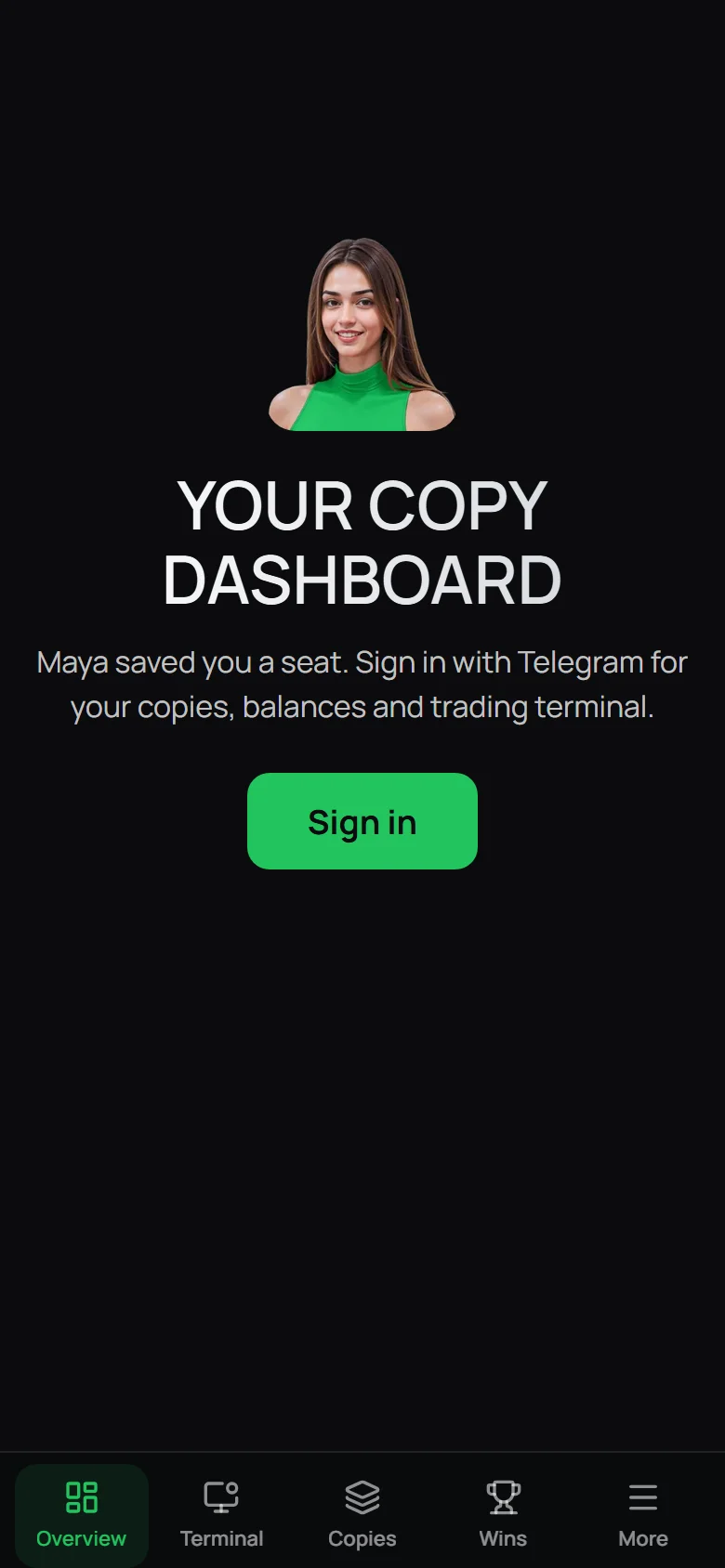
The image shows the Mini App before sign-in. Wallet setup comes later. Keep private keys, recovery phrases and verification codes out of bot conversations. If you switch Telegram identities, check the account again before depositing.
Choose the execution mode before reviewing a copy
Paper and Live have separate copies and records. Paper lets you practice without real trades, but its fills won't tell you exactly how a live order would execute. Selecting a mode doesn't start or resume a copy.
Use /copy or New copy to find a Fomo profile or supported wallet. Choose the wallets and networks, rules, size and duration. Read those choices on the final review screen before confirming.
Review buy limits and exits together
Check the maximum buys per coin and total token budget as well as the amount of each buy. A trader can make several small purchases. Several followed traders can use more cash again.
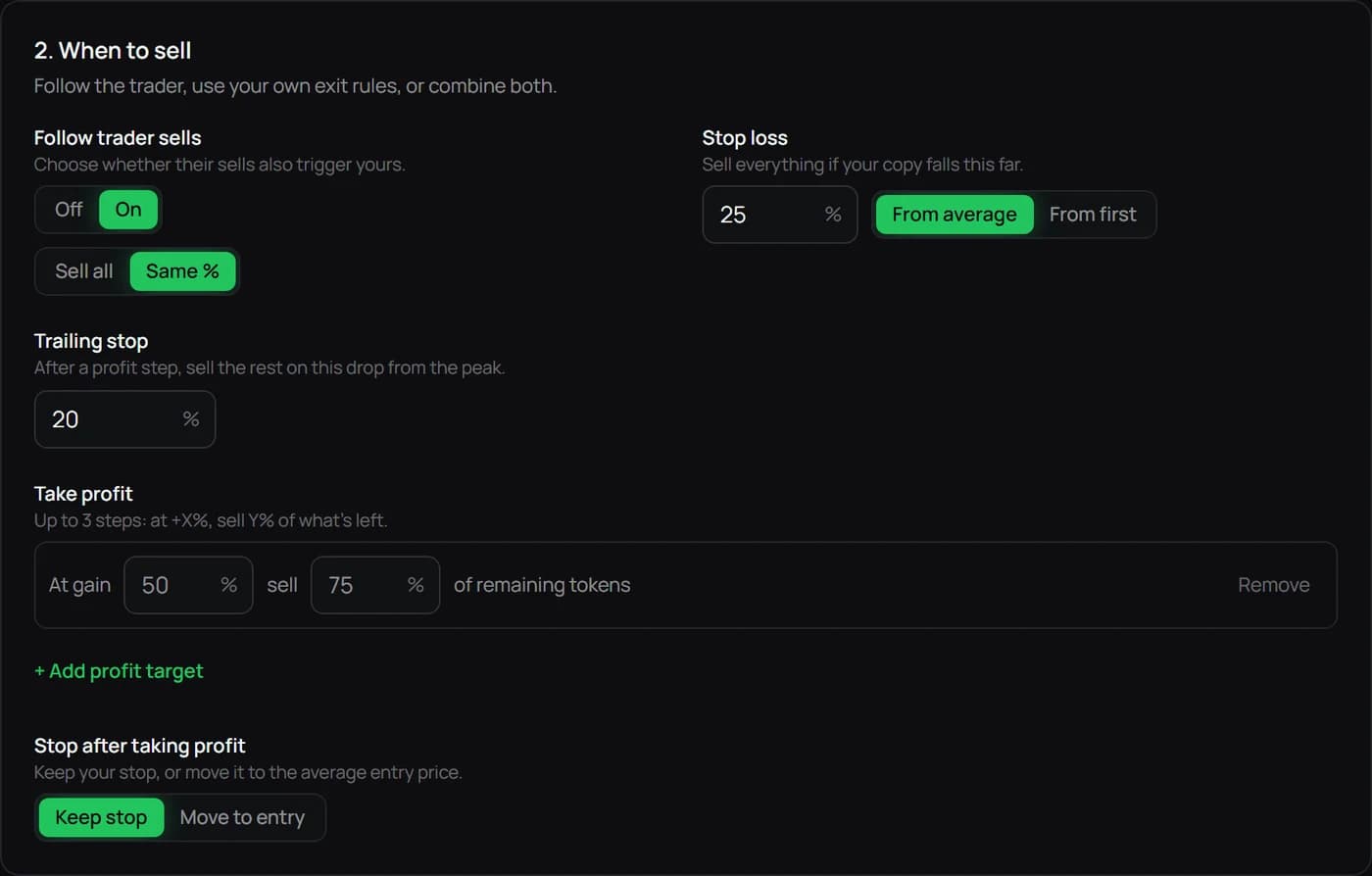
Decide whether to follow the trader's sells, use your own exits or combine them. The price that triggers a take profit and the fraction sold are separate settings. Stops can fill worse than their threshold. The example below shows the dashboard editor; the Telegram chat uses different buttons.
Fund the selected network and review costs
A Live copy needs the supported cash asset and native gas on each selected execution network. The same EVM address on Base and another EVM chain does not have one shared balance. Solana uses a separate wallet. Review the actual funding and permission status rather than copying a generic balance from an example.
Maya's current standard service fee is 2% on each executed buy or sell. Verified holdings of at least 10,000,000 MAYA in the Maya dashboard wallet on Base qualify for 0% Maya service fees on supported copy chains. That benefit does not remove network costs, venue fees, slippage or the possibility of a trading loss.
Confirm, then inspect what actually happened
Confirm when the summary matches your intended account, mode and rules. The copy then waits for future eligible signals. It doesn't buy the leader's existing portfolio. Each new signal can fill or be skipped.
Open /copies, /portfolio or Terminal to see what happened. Look for the filled transaction or the skip reason. A saved setting or trade notification alone doesn't tell you that your order filled.
Know the difference between pausing, selling and revoking
Chat pause/stop controls can stop the selected mode's copying and exits while leaving tokens in the wallet. Review the exact control and its mode before confirming. Selling a position and withdrawing cash are separate actions. Pausing cannot cancel a transaction already sent.
Revoking trading permission prevents future delegated signing for the selected wallet family; it does not automatically sell holdings. Changing the mode shown on screen or closing Telegram also does not close Live positions. Check open positions before leaving an account unattended.
Keep your next step clear.
Review the wallet, network and copy rules before starting.
Open Maya dashboard →Read the full guide →